



NocTel has encountered instances of Wi-Fi Calling issues caused by iPhone or cellular provider settings. If implementing the solution below does not resolve your issue, please contact your cellular provider's support for assistance. |
Why am I experiencing "digitized sound, audio cuts, or dropped calls" when making a Wi-Fi call on my iPhone over my NocTel Fiber Internet connection?
Depending on your carrier, you may encounter issues where calls made while connected to Wi-Fi experience poor audio or call connection. This occurs when certain carriers default to cellular signal (no matter its strength) even when iPhone Wi-Fi calling is enabled. Because the carrier setting cannot be changed, calls are not actually sent over a Wi-Fi connection when ANY cellular signal is present.
If you have a carrier that supports Wi-Fi calling and has adequate handover between cellular and Wi-Fi connections.
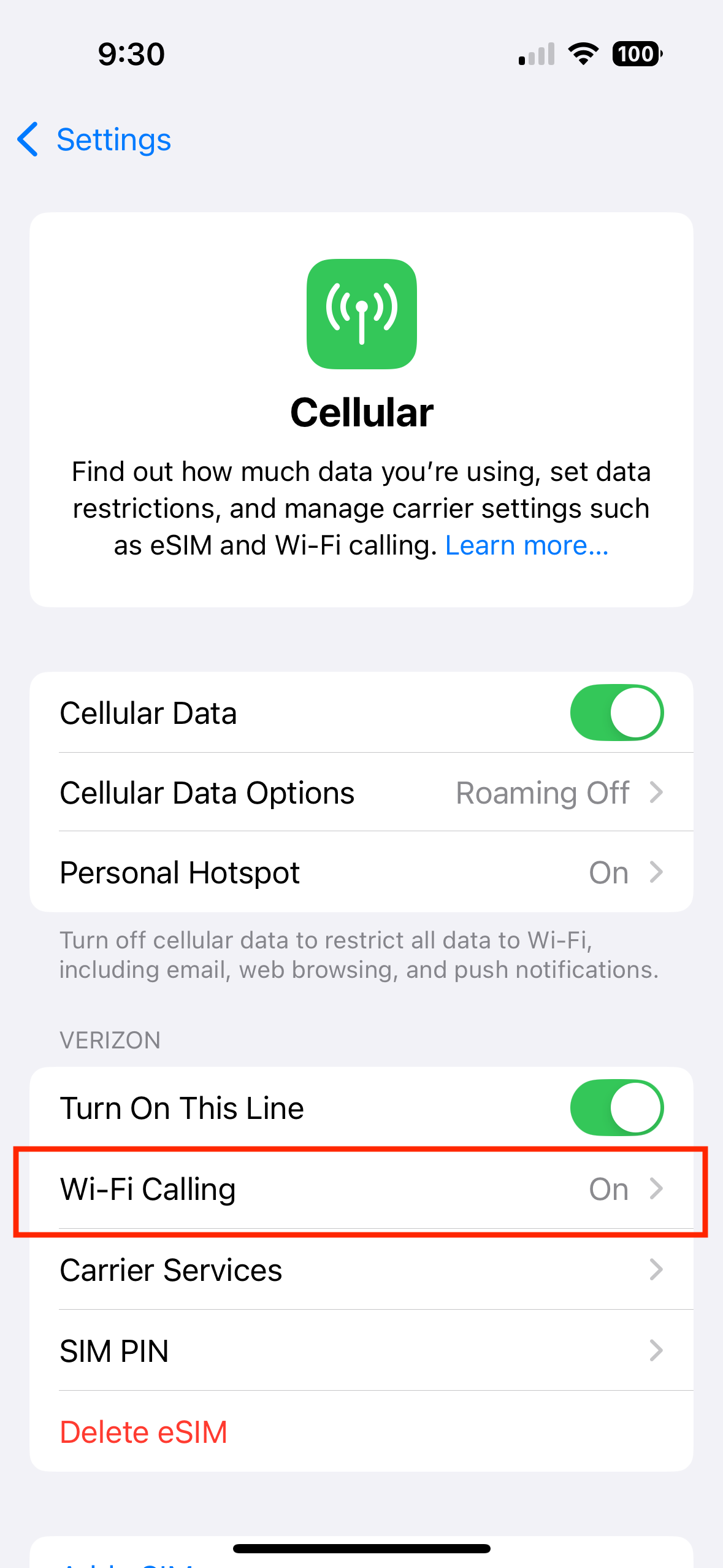
Enabling Wi-Fi Calling or Ensuring Wi-Fi Calling is Enabled:
If the Wi-Fi calling option is not visible, your carrier may have it disabled. You may want to reach out to your carrier's support team to confirm if Wi-Fi Calling is not allowed on your service plan or device. |
Please note that some carriers do not support any Wi-Fi calling: you can check Apple's list here to see if your carrier supports wifi calling: https://support.apple.com/en-us/109526 |
If your Wi-Fi calling is enabled and you are still encountering issues, your carrier may be blocking Wi-Fi calls or prioritizing a weak or poor cellular signal. You can try bypassing a weak cellular signal by turning your cellular service OFF.
To Disable cellular service:
Please note that if you turn off cellular service and disconnect from OR leave your Wi-Fi network's range, your device may not receive or make calls until Cellular service is turned back on. |
Some users have found that disabling a carrier setting called Wi-Fi Assist has help with Wi-Fi call quality.

Related articles appear here based on the labels you select. Click to edit the macro and add or change labels.
|