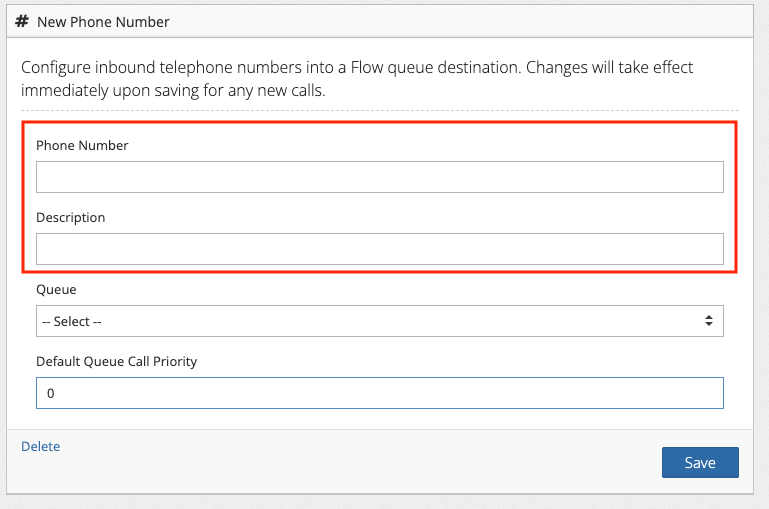
The Phone Numbers section located under Settings in the Flow interface can be accessed by Manager level users. The Phone Numbers area allows the user to configure the ways calls are handed from Talk to Flow, but it can also be used to add number for use for outbound caller ID. Complete to two section below to add a new phone number to a queue for its outbound caller ID number. If a number is already in your Flow Phone Number section you can skep to STEP 2 below.
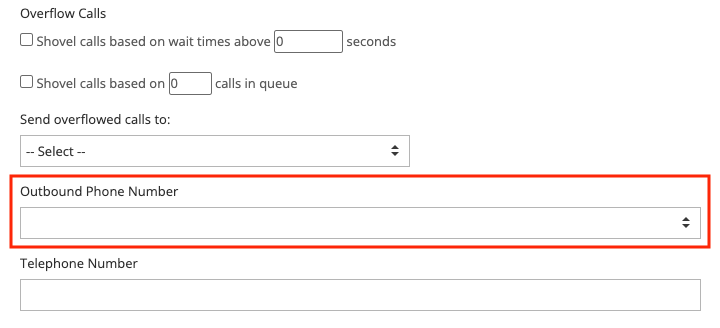
The phone number is now set as the outbound caller ID number for the queue and is used when an agent makes an outbound call from that queue.
Agents must select the correct queue when making an outbound call, for the desired outbound caller ID number to be used. View our agent guide for making outbound calls. |