...
- Visit noctel.com

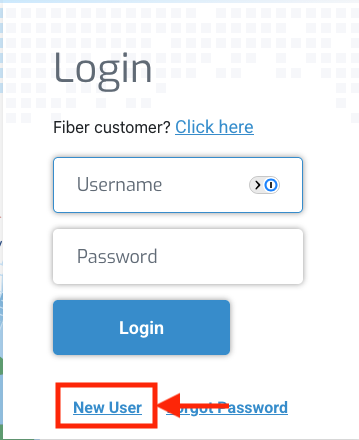
- Click the Sign In Login button located in the upper right corner of the page

- Click the New User Signup link link below the log in fields.
- Enter the requested user data into the form, filling out each field completely.Check the box which states :
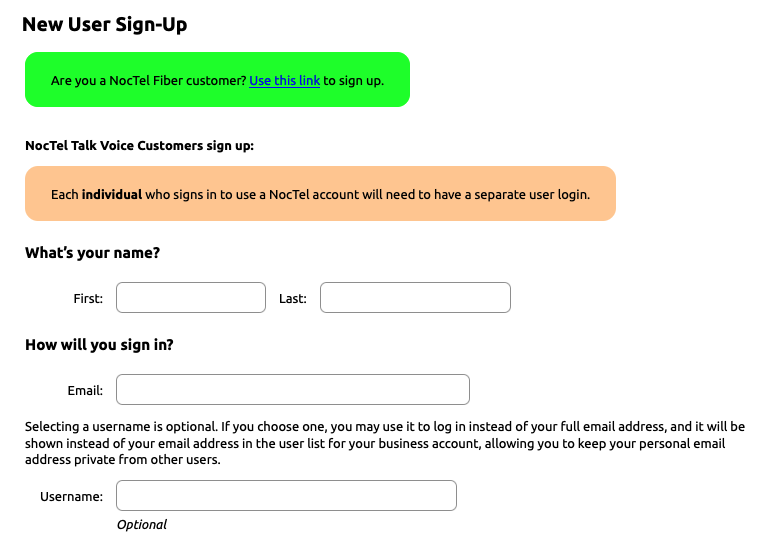
Info title Usernname Selecting a username is optional. If you do not enter a username, your email address will be your username when logging in. If you choose one, you may use it to log in instead of your full email address, and it will be shown instead of your email address in the user list for your business account, allowing you to keep your personal email address private from other users.
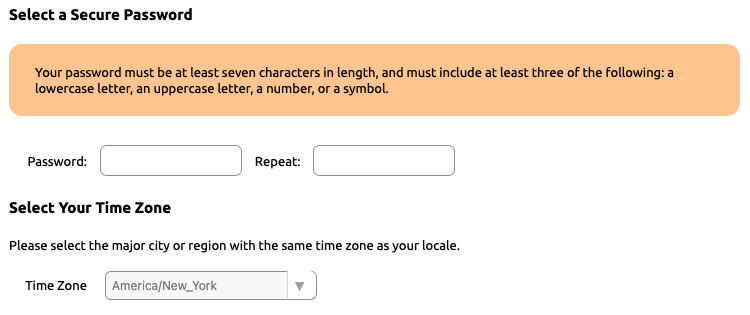
- Select a Password and a time zone.
- Check the Terms of Service box confirming that you have read and accepted the terms and conditions for your account.


- Click the "Create User" button.

- Check your email for a verification link. Upon receiving this, click the link to finish creation of your account.
...
You can create your own business account. Start by selecting the "Plan" that you wish to use. Click here for our guide on creating a business account.
Related articles
| Content by Label | ||||||||||||||||||
|---|---|---|---|---|---|---|---|---|---|---|---|---|---|---|---|---|---|---|
|
...