IMPORTANT! Issues with messages sent over Wi-Fi are likely due to your cellular provider, not your Wi-Fi or Internet connection.
NocTel has encountered issues with messaging over Wi-Fi caused by app or cellular provider settings. If implementing the solution below does not resolve your issue, please contact your cellular provider's support for assistance.
Why Aren't My Messages Sending Over My Wi-Fi Connection?
Some default messaging apps like Samsung Messages do not have RCS enabled by default. In these instances, larger messages fail either because they are too large or because the phone defaults to a weaker cellular connection rather than Wi-Fi. If you are experiencing messaging issues while on your NocTel Fiber connection, try the steps below to switch your default messaging app and ensure RCS messaging is enabled.
What is MMS and RCS?
Rich Communication Services (RCS) is a modern messaging protocol that enhances the traditional SMS/MMS experience with interactive and high-res media. RCS uses Wi-Fi or Data (Internet-based) connections. RCS offers features like typing indicators, read receipts, and larger file sizes.
Multimedia Messaging Service (MMS) is a standard protocol for sending multimedia messages over cellular networks. MMS has lower quality, stricter file size limits, and lacks interactivity and branding.
How to Set Google Messages as Your Default Messaging App
- Download or open the Google Messages app on your device. If the app is not on your home screen, you can search for "Google Messages" to locate it.
- Opening the app prompts you to set it as the default. Tap the "Set default SMS app" button.

Select the Messages options with the matching app icon, and tap the "Set as Default" button. (NOTE: a lot of messaging apps simple call their app "messages", so it can be confusing as to which to select. You want to select the one that matches the Google Messages Icon.)
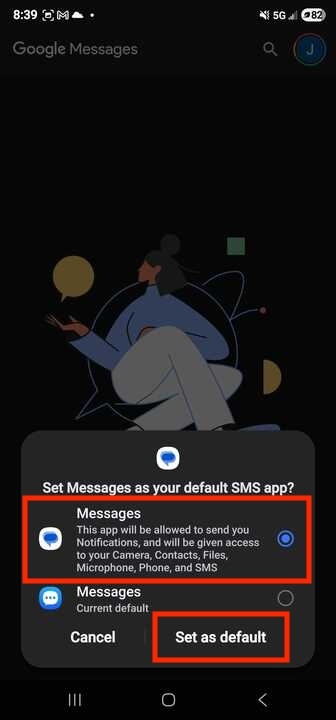
Icon Note
A lot of messaging apps simple call their app "messages", so it can be confusing as to which to select. You want to select the one that matches the Google Messages Icon

Google Messages should now be your default app. Google Messages should have RCS enabled by default, but you can double-check by using the steps below.
How to Enable RCS Messages on Google Messages
- Open the Google Messages App.
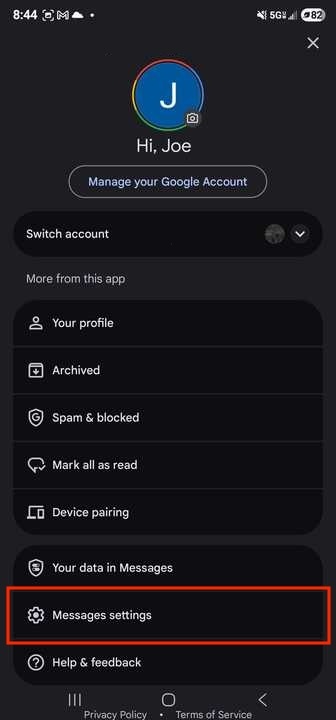
- Tap your profile icon in the top-right corner of the app window.

- Tap Messages Setting.
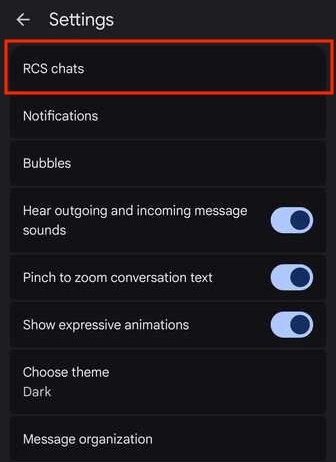
- Tap RCS Chats.
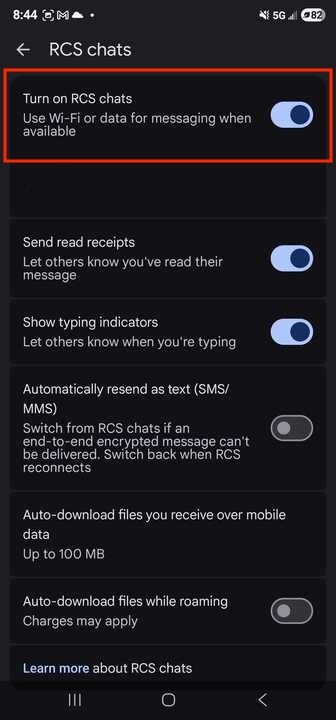
- Tap the Turn on RCS Chats toggle. The toggle will be a light blue when on, as in the screenshot below.
Related articles